
Setting Up a Simulation Operation Sequence
In Simcenter STAR-CCM+ you create simulation operations under the node. A simulation operation sequence is created by adding operations in execution order.
To create a new simulation operation sequence:
-
Right-click the node and select New.
A [simulation operation] node appears in the tree.
-
Right-click the node and select .
Depending on the physics models enabled in your physics continua, part or all operations are available from the list 操作参考.
To add a loop operation:
- Right-click the Simulation Operations 1 node and select .
- Select the node and set the relevant Predicate Type.
-
Right-click the
node and select the operations for the child sequence.
For more details, refer to the Loop section.
To add a condition operation:
- Right-click the Simulation Operations 1 node and select .
- Click the node and set the relevant Predicate Type.
- Right-click the node and select the operations for the True child sequence.
-
Right-click the
node and select the operations for the
False child sequence.
For more details, refer to the Condition section.
To reorder an existing simulation operation sequence:
-
Right-click the
node and select
Reorder...
A Reorder Simulation Operations dialog appears. Reorder the operations by dragging and dropping them in the right location.
After setting up the simulation operation sequence, you are advised to
validate the included operations:
-
Right-click the node or the defined sequence— the [simulation
operations] node and select Validate Operations.
A Simulation Operation Warnings window is activated next to the simulation output window. Any invalidity of the sequence is listed.
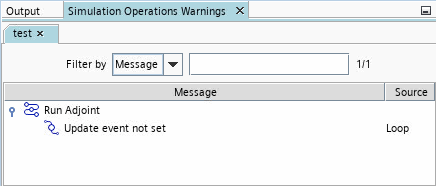
Three examples are demonstrated in Example Workflows.